> ## Documentation Index
> Fetch the complete documentation index at: https://docs.borghq.io/llms.txt
> Use this file to discover all available pages before exploring further.
# Linear Integration
> Push findings to Linear
Connect Odin to Linear to push security findings into your engineering workflow.
## Connecting
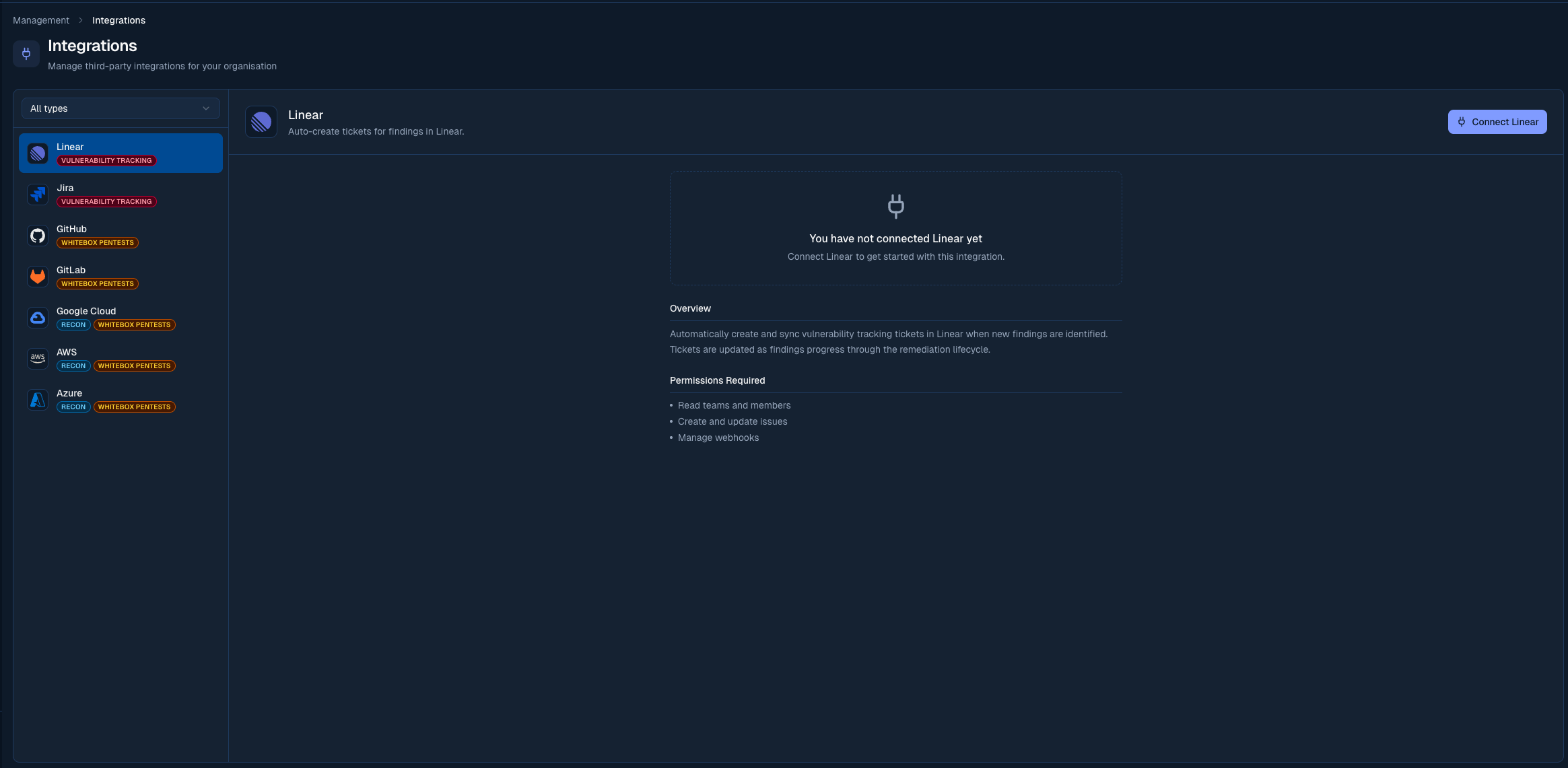
Go to **Management > Integrations** in the sidebar.
Click **Connect** next to Linear and authorise the Odin app via Linear's OAuth flow.
Choose the Linear team where issues should be created.
 ## Pushing a finding
On any finding, click **Push to Linear**. Odin creates a Linear issue with:
* Finding title and severity as the issue title and priority
* Description, reproduction steps, and suggested fix in the issue body
* A label indicating the source (e.g. `mjolnir`, `security`)
You can push multiple findings at once using the bulk action toolbar on the Findings page.
## Auto-ticketing
Auto-ticketing creates Linear issues automatically when new findings are reported, without any manual action from your team.
From the integration settings panel:
* **Auto-create tickets**: toggle on to enable. When disabled, you can still create issues manually from each finding.
* **Minimum severity**: only findings at or above this severity trigger automatic issue creation. Defaults to Medium.
Set the minimum severity to **High** or **Critical** if you want to keep your Linear board focused on the most urgent issues and handle lower-severity findings manually.
## Customising synced issues
With your team selected, the **Issue customization** panel on the Linear card shapes the issues Odin opens. On top of the shared [default assignee, labels, and priority mapping](/platform/integrations/overview#customising-synced-issues), Linear adds:
* **Initial state**: the workflow state new issues open in (Triage, Backlog, Todo, In Progress, and so on). Leave it unset to use your team's default.
* **Project**: place every synced issue into a chosen Linear project.
Priority mapping turns each finding severity into a Linear priority (Urgent, High, Normal, Low). The label picker reads your team's labels, with an option to show every workspace label or create a new one without leaving Odin.
## Status sync
A finding's status and its linked Linear issue's workflow state stay in sync, in both directions.
| Odin status | Linear state |
| -------------------------- | ------------ |
| Reported | Backlog |
| Mitigating, Needs Revision | In Progress |
| Open for Retest | In Review |
| Fixed & Retested | Done |
| Acknowledged | Cancelled |
| Linear state | Odin status |
| ------------ | --------------- |
| Backlog | Reported |
| In Progress | Mitigating |
| In Review | Open for Retest |
| Done | Open for Retest |
| Cancelled | Acknowledged |
Moving the issue to **Done** signals your fix is ready for Borg to verify, so it maps to **Open for Retest** rather than **Fixed & Retested**. Only Borg can confirm a retest.
Odin matches by state name first, so a team on the default Linear workflow gets the mapping above exactly. For a customised workflow, Odin falls back to matching the state's underlying type (Backlog, Started, Completed, Cancelled).
## Notes
* Issues are created in the team you selected during setup
* You can update which team findings are sent to at any time from the Integrations page
* If the team you selected is later retired in Linear, findings can't sync to it. Odin flags this as a **Sync error** on the Linear card so you can pick a new team to clear it — see [Sync health](/platform/integrations/overview#sync-health).
* Multiple issue trackers can be active at the same time. When you connect a second one (for example Linear and Jira together), Odin keeps new findings and status changes in sync across all active trackers.
## Pushing a finding
On any finding, click **Push to Linear**. Odin creates a Linear issue with:
* Finding title and severity as the issue title and priority
* Description, reproduction steps, and suggested fix in the issue body
* A label indicating the source (e.g. `mjolnir`, `security`)
You can push multiple findings at once using the bulk action toolbar on the Findings page.
## Auto-ticketing
Auto-ticketing creates Linear issues automatically when new findings are reported, without any manual action from your team.
From the integration settings panel:
* **Auto-create tickets**: toggle on to enable. When disabled, you can still create issues manually from each finding.
* **Minimum severity**: only findings at or above this severity trigger automatic issue creation. Defaults to Medium.
Set the minimum severity to **High** or **Critical** if you want to keep your Linear board focused on the most urgent issues and handle lower-severity findings manually.
## Customising synced issues
With your team selected, the **Issue customization** panel on the Linear card shapes the issues Odin opens. On top of the shared [default assignee, labels, and priority mapping](/platform/integrations/overview#customising-synced-issues), Linear adds:
* **Initial state**: the workflow state new issues open in (Triage, Backlog, Todo, In Progress, and so on). Leave it unset to use your team's default.
* **Project**: place every synced issue into a chosen Linear project.
Priority mapping turns each finding severity into a Linear priority (Urgent, High, Normal, Low). The label picker reads your team's labels, with an option to show every workspace label or create a new one without leaving Odin.
## Status sync
A finding's status and its linked Linear issue's workflow state stay in sync, in both directions.
| Odin status | Linear state |
| -------------------------- | ------------ |
| Reported | Backlog |
| Mitigating, Needs Revision | In Progress |
| Open for Retest | In Review |
| Fixed & Retested | Done |
| Acknowledged | Cancelled |
| Linear state | Odin status |
| ------------ | --------------- |
| Backlog | Reported |
| In Progress | Mitigating |
| In Review | Open for Retest |
| Done | Open for Retest |
| Cancelled | Acknowledged |
Moving the issue to **Done** signals your fix is ready for Borg to verify, so it maps to **Open for Retest** rather than **Fixed & Retested**. Only Borg can confirm a retest.
Odin matches by state name first, so a team on the default Linear workflow gets the mapping above exactly. For a customised workflow, Odin falls back to matching the state's underlying type (Backlog, Started, Completed, Cancelled).
## Notes
* Issues are created in the team you selected during setup
* You can update which team findings are sent to at any time from the Integrations page
* If the team you selected is later retired in Linear, findings can't sync to it. Odin flags this as a **Sync error** on the Linear card so you can pick a new team to clear it — see [Sync health](/platform/integrations/overview#sync-health).
* Multiple issue trackers can be active at the same time. When you connect a second one (for example Linear and Jira together), Odin keeps new findings and status changes in sync across all active trackers.