> ## Documentation Index
> Fetch the complete documentation index at: https://docs.borghq.io/llms.txt
> Use this file to discover all available pages before exploring further.
# Jira Integration
> Push findings to Jira
Connect Odin to Jira to push security findings into your project management workflow.
## Connecting
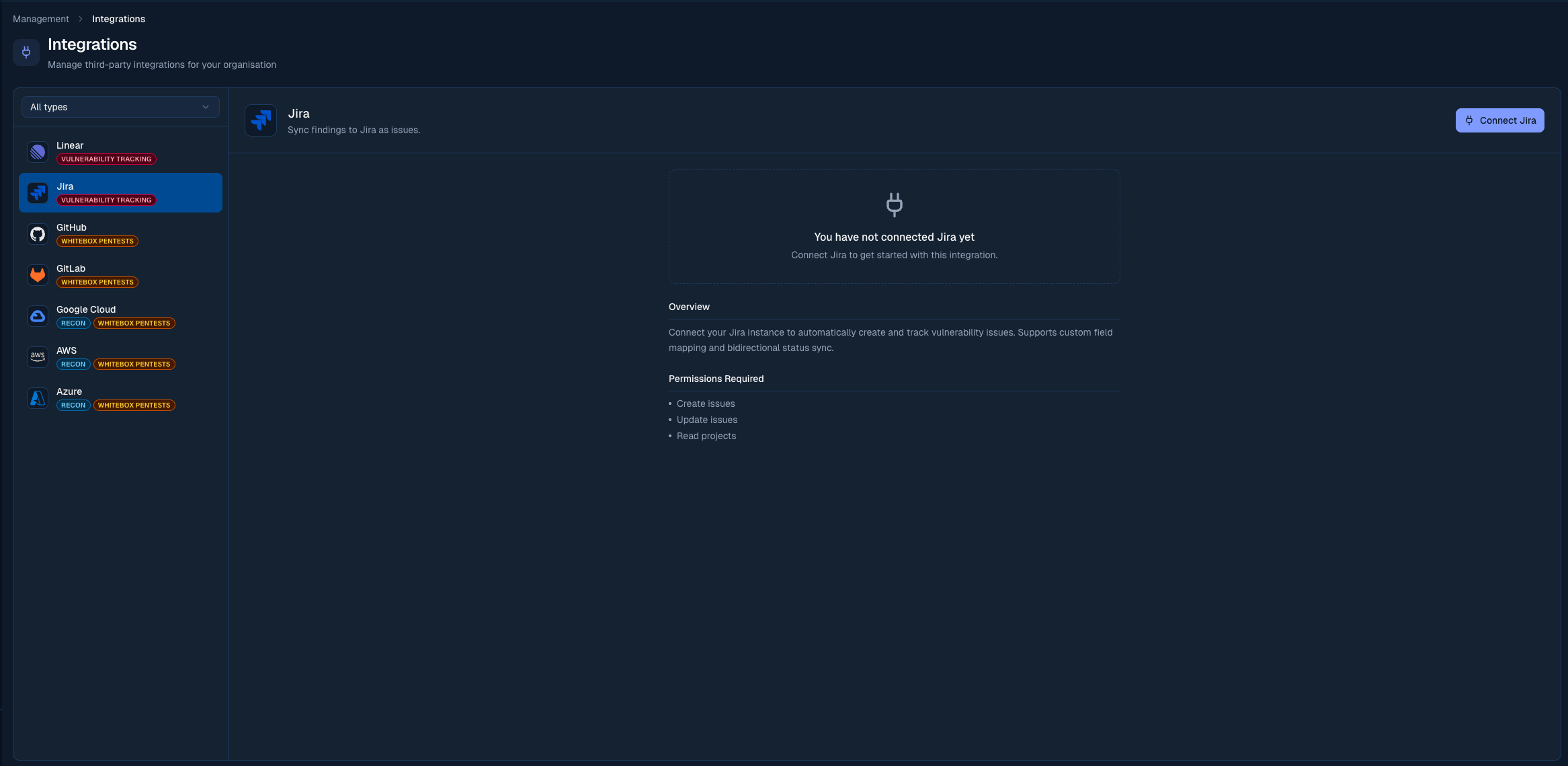
Go to **Management > Integrations** in the sidebar.
Click **Connect** next to Jira. You'll be redirected to Atlassian to authorise the Odin app.
Choose the Jira Cloud site where issues should be created.
Select the Jira project that should receive security findings.
 ## Pushing a finding
On any finding, click **Push to Jira**. Odin creates a Jira issue with:
* Finding title as the issue summary
* Severity mapped to Jira priority (Critical, High, Medium, Low)
* Full description, reproduction steps, and suggested fix in the issue body
You can push multiple findings at once using the bulk action toolbar on the Findings page.
## Auto-ticketing
Auto-ticketing creates Jira issues automatically when new findings are reported, without any manual action from your team.
From the integration settings panel:
* **Auto-create tickets**: toggle on to enable. When disabled, you can still create issues manually from each finding.
* **Minimum severity**: only findings at or above this severity trigger automatic issue creation. Defaults to Medium.
Set the minimum severity to **High** or **Critical** if you want to keep your Jira board focused on the most urgent issues and handle lower-severity findings manually.
## Customising synced issues
With your site and project connected, use the **Issue customization** panel on the Jira card to shape the issues Odin opens. On top of the shared [default assignee, labels, and priority mapping](/platform/integrations/overview#customising-synced-issues), Jira adds:
* **Issue type**: the type Odin uses when creating issues, drawn from your project's issue types. If your project uses a custom type for security work (for example "Vulnerability" or "Security Bug"), pick it here. Leave it unset to use the project's default.
* **Component**: assign every synced issue to a project component.
Priority mapping turns each finding severity into one of your site's Jira priorities, and the label picker reads your site's labels (you can also type a label that doesn't exist yet).
## Status sync
A finding's status and its linked Jira issue's status stay in sync, in both directions.
| Odin status | Jira status |
| -------------------------- | ----------- |
| Reported | To Do |
| Mitigating, Needs Revision | In Progress |
| Open for Retest | In Review |
| Fixed & Retested | Done |
| Acknowledged | Won't Do |
| Jira status | Odin status |
| ------------------- | --------------- |
| To Do | Reported |
| In Progress | Mitigating |
| In Review | Open for Retest |
| Won't Do, Won't Fix | Acknowledged |
Moving the issue to a generic **Done** status doesn't change the finding. Only Borg can set **Fixed & Retested**. Use **Won't Do** (or **Won't Fix**) to acknowledge a finding from Jira instead.
Odin matches by status name first, so a site on the default Jira workflow gets the mapping above exactly. For a customised workflow, Odin falls back to matching the status's category (To Do, In Progress) where that's unambiguous.
## Notes
* Issues are created in the project you selected during setup
* You can switch to a different Jira project at any time from the Integrations page
* Only Jira Cloud is supported. Jira Server and Jira Data Center are not currently available.
* Multiple issue trackers can be active at the same time. When you connect a second one (for example Jira and Linear together), Odin keeps new findings and status changes in sync across all active trackers.
## Pushing a finding
On any finding, click **Push to Jira**. Odin creates a Jira issue with:
* Finding title as the issue summary
* Severity mapped to Jira priority (Critical, High, Medium, Low)
* Full description, reproduction steps, and suggested fix in the issue body
You can push multiple findings at once using the bulk action toolbar on the Findings page.
## Auto-ticketing
Auto-ticketing creates Jira issues automatically when new findings are reported, without any manual action from your team.
From the integration settings panel:
* **Auto-create tickets**: toggle on to enable. When disabled, you can still create issues manually from each finding.
* **Minimum severity**: only findings at or above this severity trigger automatic issue creation. Defaults to Medium.
Set the minimum severity to **High** or **Critical** if you want to keep your Jira board focused on the most urgent issues and handle lower-severity findings manually.
## Customising synced issues
With your site and project connected, use the **Issue customization** panel on the Jira card to shape the issues Odin opens. On top of the shared [default assignee, labels, and priority mapping](/platform/integrations/overview#customising-synced-issues), Jira adds:
* **Issue type**: the type Odin uses when creating issues, drawn from your project's issue types. If your project uses a custom type for security work (for example "Vulnerability" or "Security Bug"), pick it here. Leave it unset to use the project's default.
* **Component**: assign every synced issue to a project component.
Priority mapping turns each finding severity into one of your site's Jira priorities, and the label picker reads your site's labels (you can also type a label that doesn't exist yet).
## Status sync
A finding's status and its linked Jira issue's status stay in sync, in both directions.
| Odin status | Jira status |
| -------------------------- | ----------- |
| Reported | To Do |
| Mitigating, Needs Revision | In Progress |
| Open for Retest | In Review |
| Fixed & Retested | Done |
| Acknowledged | Won't Do |
| Jira status | Odin status |
| ------------------- | --------------- |
| To Do | Reported |
| In Progress | Mitigating |
| In Review | Open for Retest |
| Won't Do, Won't Fix | Acknowledged |
Moving the issue to a generic **Done** status doesn't change the finding. Only Borg can set **Fixed & Retested**. Use **Won't Do** (or **Won't Fix**) to acknowledge a finding from Jira instead.
Odin matches by status name first, so a site on the default Jira workflow gets the mapping above exactly. For a customised workflow, Odin falls back to matching the status's category (To Do, In Progress) where that's unambiguous.
## Notes
* Issues are created in the project you selected during setup
* You can switch to a different Jira project at any time from the Integrations page
* Only Jira Cloud is supported. Jira Server and Jira Data Center are not currently available.
* Multiple issue trackers can be active at the same time. When you connect a second one (for example Jira and Linear together), Odin keeps new findings and status changes in sync across all active trackers.