> ## Documentation Index
> Fetch the complete documentation index at: https://docs.borghq.io/llms.txt
> Use this file to discover all available pages before exploring further.
# Findings
> Track, triage, and remediate security issues across your organisation
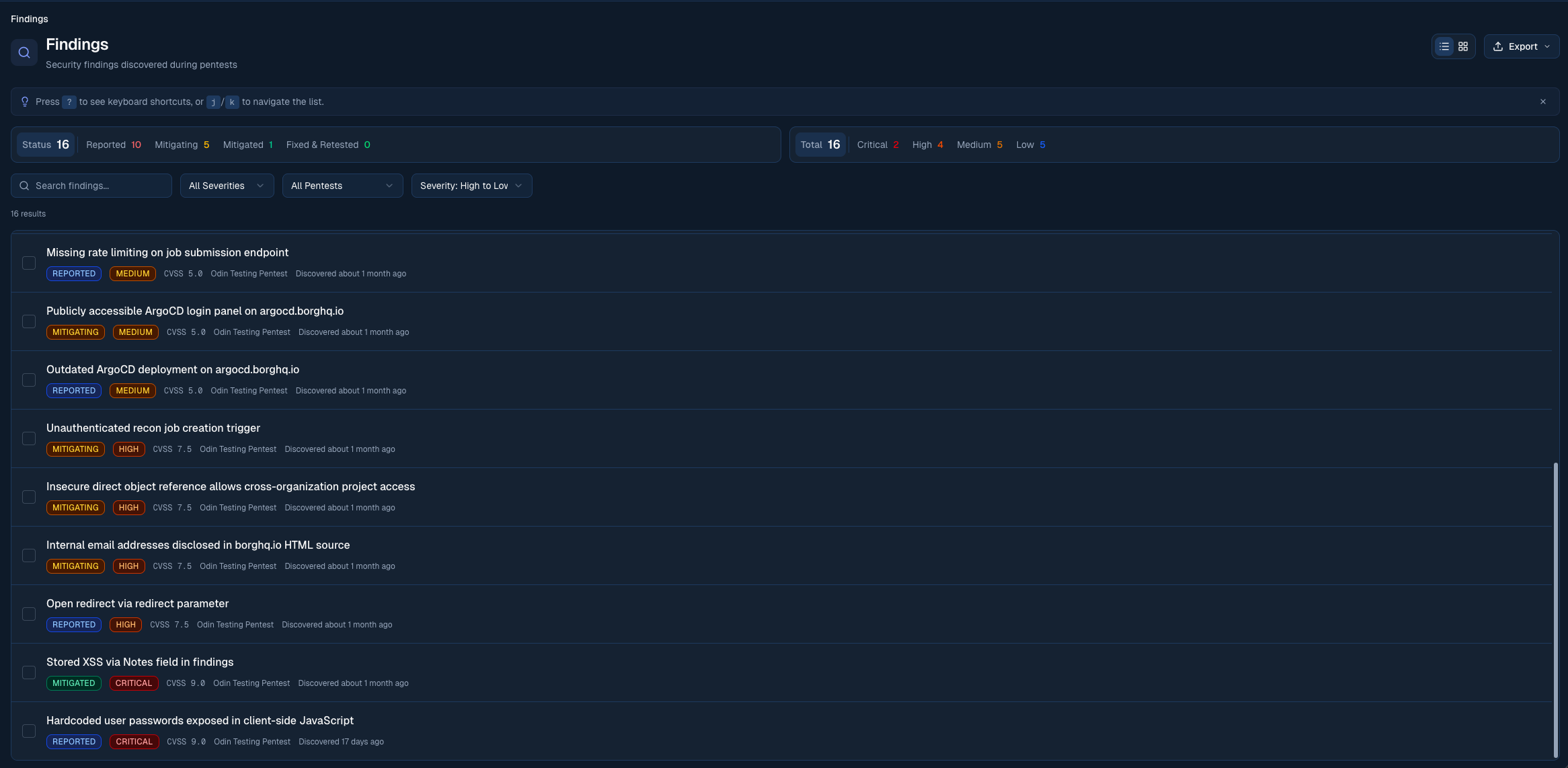
Findings are security issues identified across your assets and pentest runs. Everything Mjolnir discovers, plus issues from Borg's continuous monitoring, manual triage by our team, or imports from your existing tooling, lands here.
 ## Severity levels
Each finding gets a severity based on exploitability and impact. Severity is set by Borg's analyst team or by Mjolnir, and is anchored to a CVSS base score:
| Severity | CVSS range | Description |
| ------------ | ---------- | ---------------------------------------------------------------------- |
| **Critical** | 9.0 – 10.0 | Immediate exploitation risk. Requires urgent remediation. |
| **High** | 7.0 – 8.9 | Significant risk with a realistic exploitation path. Address promptly. |
| **Medium** | 4.0 – 6.9 | Real issue but harder to exploit or lower impact. Plan remediation. |
| **Low** | 0.1 – 3.9 | Minor issue or defence-in-depth improvement. Fix when practical. |
You can filter findings by source, severity, and CVSS range from the filters bar.
## Confirmation type
Mjolnir findings carry a confirmation type alongside their severity. Severity is how serious the issue is. Confirmation type is how Mjolnir established it was real, and how much evidence sits behind it.
| Confirmation | What it means |
| ------------- | ------------------------------------------------------------------------------------ |
| **Exploited** | Mjolnir ran the attack end to end and proved it works. This is the strongest signal. |
| **Partial** | Mjolnir found evidence the issue is real but stopped short of a working exploit. |
| **Static** | Mjolnir confirmed the issue by reading the source code, without running an attack. |
The confirmation type shows on each finding as a small bar icon that grows with confidence: one bar for Static, two for Partial, three for Exploited. Hover the icon, or open the finding, to see the label and a short explanation. Findings our analyst team raises by hand don't carry a confirmation type, so you'll only see the icon on Mjolnir findings.
Filter by **Confirmation** in the filters bar to focus on one level, such as only the issues Mjolnir has fully exploited.
## Finding status
Each finding moves through a status lifecycle that captures the back-and-forth between your team and Borg as a fix is applied and verified:
| Status | What it means | Set by |
| -------------------- | ------------------------------------------------------------------------------------ | --------- |
| **Reported** | The finding has been published to your team and is awaiting triage | Borg |
| **Acknowledged** | You've seen the finding and accepted the risk for now; not actively being remediated | Your team |
| **Mitigating** | Remediation is in progress on your side | Your team |
| **Open for Retest** | You've applied a fix and want Borg to verify it | Your team |
| **Needs Revision** | Borg retested and the fix is insufficient (or introduces a new issue) | Borg |
| **Fixed & Retested** | Borg has verified the remediation is effective | Borg |
### Changing the status
From the finding detail view, **Member**, **Admin**, and **Owner** roles can move a finding between client-controlled states:
* **Reported** → Mark as Mitigating, or Acknowledge
* **Acknowledged** → Resume Mitigation
* **Mitigating** → Mark as Open for Retest, or Acknowledge
* **Open for Retest** → Reopen as Mitigating, or Acknowledge
* **Needs Revision** → Resume Mitigation, or Mark as Ready for Retest
You can optionally attach a comment when changing status. Borg sees the comment alongside the status change in the activity timeline.
After every status change, a toast appears with an **Undo** action. Use it if you change a finding's status by mistake.
## Assigning findings
Assign a finding to a teammate so it's clear who owns getting it fixed — the same way you'd assign an issue in Linear or Jira.
* On the **Findings** list, each row has an assignee avatar in its own column, between the name and CVSS. Click the avatar — or the dashed placeholder on an unassigned finding — to pick an assignee inline, without opening the finding.
* Inside a finding, use the **assignee** control in the header to assign, reassign, or clear.
Findings can be assigned to any **Owner**, **Admin**, or **Member** — the roles that can act on findings. **Read Only** members can't be assigned. Assigning requires the Member role or higher.
When you assign someone, they receive an in-app notification and an email that the finding is now theirs. Changing or clearing the assignee updates everywhere instantly, and the change is recorded in the finding's [activity timeline](#discussion-and-activity).
If the finding is linked to an issue in a connected tracker, the assignment syncs there too, and a reassignment in the tracker flows back to Odin. See [assignee sync](/platform/integrations/overview#assignee-sync).
Hover an assignee avatar in the list to see who a finding is assigned to without opening it.
## Following findings
Follow a finding to get notified about its updates, independent of whether you're assigned to it.
* Inside a finding, a **Follow** / **Following** button (bell icon) sits next to the assignee control, alongside a count of how many people are subscribed.
* Following a finding means you get notified about updates to it — status changes, comments, and other activity — through the [Alert Centre](/platform/notifications).
You don't need to follow a finding manually to end up subscribed to it:
* When a finding is **reported**, your organisation's [default finding subscribers](/platform/organisation-settings#default-finding-subscribers) are subscribed automatically — every non-**Read Only** member, unless your organisation has customised the list. If the delivery includes a **Critical** finding, those default subscribers are also emailed.
* Interacting with a finding subscribes you too: changing its status, commenting, being `@mentioned`, or being assigned.
* **Assignees** always follow the findings assigned to them and can't unfollow while the assignment stands — unassign first if you want to stop following.
Unfollowing is remembered: Odin won't automatically re-subscribe you to that finding again, though you can always follow it again manually. **Read Only** members can follow findings too, even though they can't be assigned.
## Finding identifiers and PR linking
Every finding has a unique, human-readable identifier made from your [organisation's finding prefix](/platform/organisation-settings) and a sequence number — for example `BORG-12`. The identifier is shown in the finding header and on every list view, and it's how findings get connected to your engineering work.
When the [GitHub integration](/platform/integrations/github) is connected, referencing that identifier from a pull request — in the branch name, title, or body — links the PR to the finding automatically. You can also link one by hand. Linked PRs show as chips in the finding header and track their open, merged, or closed state live.
Linking a fix is also the trigger for verifying it: once a linked PR merges, Odin can review the change and confirm whether the finding is resolved, moving it to **Fixed & Retested** or **Needs Revision** without a manual retest step.
How to link a pull request to a finding — three ways — and how Odin verifies the fix when it merges
## What's inside a finding
Every finding contains:
* **Title and severity**: a one-line summary plus severity label and CVSS score
* **Confirmation type**: for Mjolnir findings, how strongly the issue was confirmed — exploited, partial, or static
* **Type**: when set, links the finding to its CWE class
* **Affected assets**: the domains, endpoints, or resources where the issue applies
* **Description**: what the vulnerability is
* **Impact**: the business consequence if it were exploited
* **Details**: technical details, including how the issue was identified
* **Remediation**: step-by-step fix guidance
* **Proof of Concept**: for Mjolnir findings, the request/response evidence captured during exploitation
* **Code Reference**: for Mjolnir findings with a code pointer, the exact file and line in your repository
* **Status history**: every status change, who made it, and any attached comment
### Revisions
Findings are immutable. Whenever Borg's analyst team or Mjolnir updates the content of a finding (after retesting, for example), a new **revision** is created and the revision number in the header increments. You always see the current revision, but the full history is preserved on Borg's side for audit.
## Views
The Findings page has two view modes you can switch between in the toolbar:
* **List**: the default tabular view, with filters, sort, and a detail panel
* **Heatmap**: a severity-by-status matrix showing how findings are distributed across your portfolio
## Filtering and search
Filters at the top of the page narrow your view:
* **Severity**: select one or more of Critical, High, Medium, Low
* **Status bar**: click any status to filter to it; Fixed & Retested and Acknowledged are hidden by default
* **Source**: filter by Mjolnir, Manual, Import, or Watchdog
* **Confirmation**: for Mjolnir findings, filter by how the issue was confirmed — Exploited, Partial, or Static
* **Pentest**: scope findings to a specific pentest engagement
* **Asset**: scope to findings affecting a specific asset
* **Repository**: for Mjolnir findings, filter by source repo
* **Search**: free-text search across titles and descriptions
* **Sort**: by severity (high → low or low → high) or by date
The URL updates as you filter, so any view can be bookmarked. You can also save your current filter set as a named **preset** for quick recall later — your presets are stored locally in your browser.
## Bulk operations
Select multiple findings with the row checkboxes, or navigate with `j`/`k` and toggle selection with `x`. With a selection active, a bulk action bar appears at the bottom of the page:
* **Update status** — move all selected findings to Mitigating or Open for Retest
* **Copy for Agent** — copy a single prompt covering every selected finding, formatted to hand straight to a coding agent. A toast confirms how many findings were copied.
* **Export** — download the selected findings as CSV, CSV (summary), Markdown, or JSON
The bulk export and copy controls pull full finding detail for the selection, so the files match the page-level export rather than the columns shown on screen.
Bulk operations require the **Member** role or higher.
## Discussion and activity
Every finding has a right-hand rail with two tabs:
* **Discussion**: a threaded conversation with Borg's analyst team. Use `@` to mention a teammate, attach files, and resolve threads when a question is settled. You can edit or delete your own messages from the message's menu; an edited message is labelled accordingly. The thread updates live, so replies from the Borg team appear as they are posted without reloading the page. New replies can trigger email notifications based on your [discussion preferences](/platform/profile).
* **Activity**: a chronological feed of every status change, revision, and integration sync for the finding
### Mentioning teammates, findings and projects
Typing `@` in a discussion opens a search grouped into **People**, **Findings**, and **Projects** (pentests). Start typing a name, finding title or identifier, or project name to filter each group.
* **People** mentions notify the teammate, as they always have.
* **Findings** and **Projects** mentions are links only and notify no one. A mentioned finding shows as a chip with its current status and severity, and a mentioned project links through to its findings.
A finding chip reads its status live each time the thread loads, so it shows the finding's current status rather than its status when the message was posted. If a finding is later deleted, or you lose access to it, its chip turns muted and stops linking through.
## Exporting findings
Click **Export** in the page header to download your current filtered view. The export respects every active filter, so narrow down by severity, status, source, etc. before exporting.
| Format | Description |
| ----------------- | -------------------------------------------------------------------------------------------------------------------------------------------------------------------------------------------------- |
| **CSV** | Spreadsheet-friendly format with columns for identifier, title, severity, CVSS, status, source, type, affected assets, summary, description, business impact, details, remediation, and timestamps |
| **CSV (summary)** | A compact spreadsheet with just title, severity, CVSS, status, and discovered date — for a quick overview rather than full detail |
| **Markdown** | Human-readable format with each finding as a section, including metadata tables and full descriptions |
| **JSON** | Machine-readable format with the same data, useful for scripting or importing into other tools. Findings with agent evidence also carry structured proof-of-concept and code-reference fields |
Findings you've [pushed to an issue tracker](#pushing-findings-to-your-issue-tracker) carry their linked issues into the export:
* **CSV** and **CSV (summary)** gain two columns after **Status**: **Linked Issue References**, which lists each issue by tracker and identifier (for example `GitHub #42` or `Linear ODIN-1272`), and **Linked Issue URLs**. Where a finding has more than one linked issue, they're separated by semicolons. These columns appear only when at least one finding in the export has a linked issue.
* **Markdown** adds a **Linked Issues** line to each finding that has one, with every issue linking back to the tracker.
* **JSON** includes a `linkedIssueReferences` array on each finding, recording the provider, identifier, URL, and provider-specific detail such as the repository or project.
### From a single finding
The finding detail header has its own export controls:
* **Copy link** — copy a shareable URL that opens this finding directly
* **Copy Markdown** — copy the finding as Markdown, or use the dropdown beside it to **Download Markdown** as a file
* **Copy for Agent** — copy a prompt describing the finding to hand to a coding agent
## Pushing findings to your issue tracker
If you've connected Linear, Jira, GitHub, or GitLab, you can push any finding directly to your issue tracker with one click. The finding title, severity, description, impact, and remediation are all included, plus a deep link back to the finding in Odin.
You can also enable [auto-ticketing](/platform/integrations/linear#auto-ticketing) so that issues are created automatically as new findings are reported.
[Shortcut](/platform/integrations/shortcut) is also supported, but only through auto-ticketing or a bulk sync. There's no one-click push for a single finding.
Set up your integration at **Management > Integrations**.
Connect Linear, Jira, GitHub, or GitLab
Some actions require re-authentication
## Severity levels
Each finding gets a severity based on exploitability and impact. Severity is set by Borg's analyst team or by Mjolnir, and is anchored to a CVSS base score:
| Severity | CVSS range | Description |
| ------------ | ---------- | ---------------------------------------------------------------------- |
| **Critical** | 9.0 – 10.0 | Immediate exploitation risk. Requires urgent remediation. |
| **High** | 7.0 – 8.9 | Significant risk with a realistic exploitation path. Address promptly. |
| **Medium** | 4.0 – 6.9 | Real issue but harder to exploit or lower impact. Plan remediation. |
| **Low** | 0.1 – 3.9 | Minor issue or defence-in-depth improvement. Fix when practical. |
You can filter findings by source, severity, and CVSS range from the filters bar.
## Confirmation type
Mjolnir findings carry a confirmation type alongside their severity. Severity is how serious the issue is. Confirmation type is how Mjolnir established it was real, and how much evidence sits behind it.
| Confirmation | What it means |
| ------------- | ------------------------------------------------------------------------------------ |
| **Exploited** | Mjolnir ran the attack end to end and proved it works. This is the strongest signal. |
| **Partial** | Mjolnir found evidence the issue is real but stopped short of a working exploit. |
| **Static** | Mjolnir confirmed the issue by reading the source code, without running an attack. |
The confirmation type shows on each finding as a small bar icon that grows with confidence: one bar for Static, two for Partial, three for Exploited. Hover the icon, or open the finding, to see the label and a short explanation. Findings our analyst team raises by hand don't carry a confirmation type, so you'll only see the icon on Mjolnir findings.
Filter by **Confirmation** in the filters bar to focus on one level, such as only the issues Mjolnir has fully exploited.
## Finding status
Each finding moves through a status lifecycle that captures the back-and-forth between your team and Borg as a fix is applied and verified:
| Status | What it means | Set by |
| -------------------- | ------------------------------------------------------------------------------------ | --------- |
| **Reported** | The finding has been published to your team and is awaiting triage | Borg |
| **Acknowledged** | You've seen the finding and accepted the risk for now; not actively being remediated | Your team |
| **Mitigating** | Remediation is in progress on your side | Your team |
| **Open for Retest** | You've applied a fix and want Borg to verify it | Your team |
| **Needs Revision** | Borg retested and the fix is insufficient (or introduces a new issue) | Borg |
| **Fixed & Retested** | Borg has verified the remediation is effective | Borg |
### Changing the status
From the finding detail view, **Member**, **Admin**, and **Owner** roles can move a finding between client-controlled states:
* **Reported** → Mark as Mitigating, or Acknowledge
* **Acknowledged** → Resume Mitigation
* **Mitigating** → Mark as Open for Retest, or Acknowledge
* **Open for Retest** → Reopen as Mitigating, or Acknowledge
* **Needs Revision** → Resume Mitigation, or Mark as Ready for Retest
You can optionally attach a comment when changing status. Borg sees the comment alongside the status change in the activity timeline.
After every status change, a toast appears with an **Undo** action. Use it if you change a finding's status by mistake.
## Assigning findings
Assign a finding to a teammate so it's clear who owns getting it fixed — the same way you'd assign an issue in Linear or Jira.
* On the **Findings** list, each row has an assignee avatar in its own column, between the name and CVSS. Click the avatar — or the dashed placeholder on an unassigned finding — to pick an assignee inline, without opening the finding.
* Inside a finding, use the **assignee** control in the header to assign, reassign, or clear.
Findings can be assigned to any **Owner**, **Admin**, or **Member** — the roles that can act on findings. **Read Only** members can't be assigned. Assigning requires the Member role or higher.
When you assign someone, they receive an in-app notification and an email that the finding is now theirs. Changing or clearing the assignee updates everywhere instantly, and the change is recorded in the finding's [activity timeline](#discussion-and-activity).
If the finding is linked to an issue in a connected tracker, the assignment syncs there too, and a reassignment in the tracker flows back to Odin. See [assignee sync](/platform/integrations/overview#assignee-sync).
Hover an assignee avatar in the list to see who a finding is assigned to without opening it.
## Following findings
Follow a finding to get notified about its updates, independent of whether you're assigned to it.
* Inside a finding, a **Follow** / **Following** button (bell icon) sits next to the assignee control, alongside a count of how many people are subscribed.
* Following a finding means you get notified about updates to it — status changes, comments, and other activity — through the [Alert Centre](/platform/notifications).
You don't need to follow a finding manually to end up subscribed to it:
* When a finding is **reported**, your organisation's [default finding subscribers](/platform/organisation-settings#default-finding-subscribers) are subscribed automatically — every non-**Read Only** member, unless your organisation has customised the list. If the delivery includes a **Critical** finding, those default subscribers are also emailed.
* Interacting with a finding subscribes you too: changing its status, commenting, being `@mentioned`, or being assigned.
* **Assignees** always follow the findings assigned to them and can't unfollow while the assignment stands — unassign first if you want to stop following.
Unfollowing is remembered: Odin won't automatically re-subscribe you to that finding again, though you can always follow it again manually. **Read Only** members can follow findings too, even though they can't be assigned.
## Finding identifiers and PR linking
Every finding has a unique, human-readable identifier made from your [organisation's finding prefix](/platform/organisation-settings) and a sequence number — for example `BORG-12`. The identifier is shown in the finding header and on every list view, and it's how findings get connected to your engineering work.
When the [GitHub integration](/platform/integrations/github) is connected, referencing that identifier from a pull request — in the branch name, title, or body — links the PR to the finding automatically. You can also link one by hand. Linked PRs show as chips in the finding header and track their open, merged, or closed state live.
Linking a fix is also the trigger for verifying it: once a linked PR merges, Odin can review the change and confirm whether the finding is resolved, moving it to **Fixed & Retested** or **Needs Revision** without a manual retest step.
How to link a pull request to a finding — three ways — and how Odin verifies the fix when it merges
## What's inside a finding
Every finding contains:
* **Title and severity**: a one-line summary plus severity label and CVSS score
* **Confirmation type**: for Mjolnir findings, how strongly the issue was confirmed — exploited, partial, or static
* **Type**: when set, links the finding to its CWE class
* **Affected assets**: the domains, endpoints, or resources where the issue applies
* **Description**: what the vulnerability is
* **Impact**: the business consequence if it were exploited
* **Details**: technical details, including how the issue was identified
* **Remediation**: step-by-step fix guidance
* **Proof of Concept**: for Mjolnir findings, the request/response evidence captured during exploitation
* **Code Reference**: for Mjolnir findings with a code pointer, the exact file and line in your repository
* **Status history**: every status change, who made it, and any attached comment
### Revisions
Findings are immutable. Whenever Borg's analyst team or Mjolnir updates the content of a finding (after retesting, for example), a new **revision** is created and the revision number in the header increments. You always see the current revision, but the full history is preserved on Borg's side for audit.
## Views
The Findings page has two view modes you can switch between in the toolbar:
* **List**: the default tabular view, with filters, sort, and a detail panel
* **Heatmap**: a severity-by-status matrix showing how findings are distributed across your portfolio
## Filtering and search
Filters at the top of the page narrow your view:
* **Severity**: select one or more of Critical, High, Medium, Low
* **Status bar**: click any status to filter to it; Fixed & Retested and Acknowledged are hidden by default
* **Source**: filter by Mjolnir, Manual, Import, or Watchdog
* **Confirmation**: for Mjolnir findings, filter by how the issue was confirmed — Exploited, Partial, or Static
* **Pentest**: scope findings to a specific pentest engagement
* **Asset**: scope to findings affecting a specific asset
* **Repository**: for Mjolnir findings, filter by source repo
* **Search**: free-text search across titles and descriptions
* **Sort**: by severity (high → low or low → high) or by date
The URL updates as you filter, so any view can be bookmarked. You can also save your current filter set as a named **preset** for quick recall later — your presets are stored locally in your browser.
## Bulk operations
Select multiple findings with the row checkboxes, or navigate with `j`/`k` and toggle selection with `x`. With a selection active, a bulk action bar appears at the bottom of the page:
* **Update status** — move all selected findings to Mitigating or Open for Retest
* **Copy for Agent** — copy a single prompt covering every selected finding, formatted to hand straight to a coding agent. A toast confirms how many findings were copied.
* **Export** — download the selected findings as CSV, CSV (summary), Markdown, or JSON
The bulk export and copy controls pull full finding detail for the selection, so the files match the page-level export rather than the columns shown on screen.
Bulk operations require the **Member** role or higher.
## Discussion and activity
Every finding has a right-hand rail with two tabs:
* **Discussion**: a threaded conversation with Borg's analyst team. Use `@` to mention a teammate, attach files, and resolve threads when a question is settled. You can edit or delete your own messages from the message's menu; an edited message is labelled accordingly. The thread updates live, so replies from the Borg team appear as they are posted without reloading the page. New replies can trigger email notifications based on your [discussion preferences](/platform/profile).
* **Activity**: a chronological feed of every status change, revision, and integration sync for the finding
### Mentioning teammates, findings and projects
Typing `@` in a discussion opens a search grouped into **People**, **Findings**, and **Projects** (pentests). Start typing a name, finding title or identifier, or project name to filter each group.
* **People** mentions notify the teammate, as they always have.
* **Findings** and **Projects** mentions are links only and notify no one. A mentioned finding shows as a chip with its current status and severity, and a mentioned project links through to its findings.
A finding chip reads its status live each time the thread loads, so it shows the finding's current status rather than its status when the message was posted. If a finding is later deleted, or you lose access to it, its chip turns muted and stops linking through.
## Exporting findings
Click **Export** in the page header to download your current filtered view. The export respects every active filter, so narrow down by severity, status, source, etc. before exporting.
| Format | Description |
| ----------------- | -------------------------------------------------------------------------------------------------------------------------------------------------------------------------------------------------- |
| **CSV** | Spreadsheet-friendly format with columns for identifier, title, severity, CVSS, status, source, type, affected assets, summary, description, business impact, details, remediation, and timestamps |
| **CSV (summary)** | A compact spreadsheet with just title, severity, CVSS, status, and discovered date — for a quick overview rather than full detail |
| **Markdown** | Human-readable format with each finding as a section, including metadata tables and full descriptions |
| **JSON** | Machine-readable format with the same data, useful for scripting or importing into other tools. Findings with agent evidence also carry structured proof-of-concept and code-reference fields |
Findings you've [pushed to an issue tracker](#pushing-findings-to-your-issue-tracker) carry their linked issues into the export:
* **CSV** and **CSV (summary)** gain two columns after **Status**: **Linked Issue References**, which lists each issue by tracker and identifier (for example `GitHub #42` or `Linear ODIN-1272`), and **Linked Issue URLs**. Where a finding has more than one linked issue, they're separated by semicolons. These columns appear only when at least one finding in the export has a linked issue.
* **Markdown** adds a **Linked Issues** line to each finding that has one, with every issue linking back to the tracker.
* **JSON** includes a `linkedIssueReferences` array on each finding, recording the provider, identifier, URL, and provider-specific detail such as the repository or project.
### From a single finding
The finding detail header has its own export controls:
* **Copy link** — copy a shareable URL that opens this finding directly
* **Copy Markdown** — copy the finding as Markdown, or use the dropdown beside it to **Download Markdown** as a file
* **Copy for Agent** — copy a prompt describing the finding to hand to a coding agent
## Pushing findings to your issue tracker
If you've connected Linear, Jira, GitHub, or GitLab, you can push any finding directly to your issue tracker with one click. The finding title, severity, description, impact, and remediation are all included, plus a deep link back to the finding in Odin.
You can also enable [auto-ticketing](/platform/integrations/linear#auto-ticketing) so that issues are created automatically as new findings are reported.
[Shortcut](/platform/integrations/shortcut) is also supported, but only through auto-ticketing or a bulk sync. There's no one-click push for a single finding.
Set up your integration at **Management > Integrations**.
Connect Linear, Jira, GitHub, or GitLab
Some actions require re-authentication