> ## Documentation Index
> Fetch the complete documentation index at: https://docs.borghq.io/llms.txt
> Use this file to discover all available pages before exploring further.
# Continuous Asset Discovery
> Automated discovery and enumeration of your external attack surface
Continuous Asset Discovery (CAD) automatically finds and monitors your external attack surface around the clock. Turn it on for a root domain or IP, and Odin discovers subdomains, open ports, running services, and linked infrastructure — keeping your asset inventory current as your environment changes.
As your organisation grows, new subdomains, services, and infrastructure appear regularly. CAD picks these up automatically, so your security team always has a complete picture without coordinating across teams or manually importing every asset.
## Scan schedule
CAD runs three scan tiers on a recurring basis:
| Tier | Frequency | What it does |
| -------------- | ------------- | --------------------------------------------------------------------------------- |
| **Hourly** | Every hour | Light DNS enumeration to discover new domains and subdomains |
| **Tri-hourly** | Every 3 hours | Advanced enumeration techniques for deeper domain and subdomain discovery |
| **Daily** | Once per day | Full port scan across all 65,535 ports, IP-address linking, and service labelling |
All scanning is non-intrusive. Newly discovered assets are automatically added to your [Assets](/platform/assets) inventory and the [Attack Surface Map](/platform/attack-surface-map).
## Recon types
DNS enumeration, HTTP probing, and TLS inspection on domains and subdomains. Identifies web servers, WAFs, certificates, and technologies in use.
Scans the full port range (65,535 ports) on IP addresses. Identifies open ports, running services, and version information. For certain services, Odin uses targeted probing to extract detailed configuration.
## Recon results
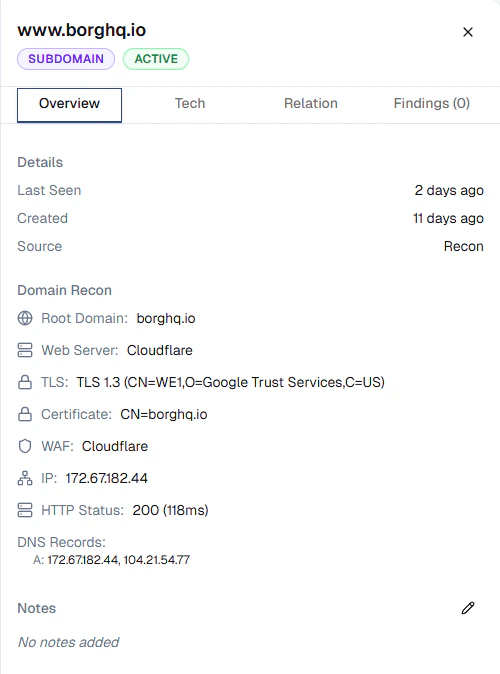
Recon data is available on each asset's detail page. Click any asset on the [Assets](/platform/assets) page to view its results.
For domains and subdomains, Domain Recon surfaces:
* **Web server**: the detected web server (e.g. Cloudflare, Nginx)
* **TLS**: protocol version and cipher details (e.g. TLS 1.3)
* **Certificate**: certificate subject and issuer
* **WAF**: detected web application firewall
* **IP**: resolved IP address
* **HTTP status**: response code and latency
* **DNS records**: A, AAAA, CNAME, and other resolved records
 For IPs, Network Recon shows open ports, detected services, and version information where available.
## Turning monitoring on or off
Continuous monitoring is controlled for your whole organisation from the **Continuous monitoring** card under **Billing → Credits**. Admins can switch it on or off at any time:
* **On** — CAD runs on your schedule and is billed at 4 credits per monitored asset per month, prorated daily.
* **Off** — all scanning stops and no CAD credits are charged. Your discovered assets are **preserved** in your [Assets](/platform/assets) inventory and [Attack Surface Map](/platform/attack-surface-map); turning monitoring back on resumes it.
When monitoring is off, an asset's detail panel shows CAD as **Off** rather than an editable toggle, since the organisation-level switch takes precedence.
CAD is billed from your plan's credits. Visit **Billing** in the sidebar to review usage, or contact [mail@borghq.io](mailto:mail@borghq.io) to discuss your plan.
For IPs, Network Recon shows open ports, detected services, and version information where available.
## Turning monitoring on or off
Continuous monitoring is controlled for your whole organisation from the **Continuous monitoring** card under **Billing → Credits**. Admins can switch it on or off at any time:
* **On** — CAD runs on your schedule and is billed at 4 credits per monitored asset per month, prorated daily.
* **Off** — all scanning stops and no CAD credits are charged. Your discovered assets are **preserved** in your [Assets](/platform/assets) inventory and [Attack Surface Map](/platform/attack-surface-map); turning monitoring back on resumes it.
When monitoring is off, an asset's detail panel shows CAD as **Off** rather than an editable toggle, since the organisation-level switch takes precedence.
CAD is billed from your plan's credits. Visit **Billing** in the sidebar to review usage, or contact [mail@borghq.io](mailto:mail@borghq.io) to discuss your plan.